
The VOR Visualizer can be used to run a variety of exercises to help you learn how to use a VOR for navigation. This article will show you the features of this app while other articles will show you how to use the visualizer to simulate different situations.
The Heading Indicator
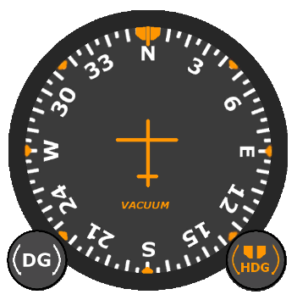
The Heading Indicator shows the airplane’s current magnetic heading.
Slide the Heading (HDG) knob left-right to rotate the heading bug. The airplane will perform a standard rate turn towards the chosen heading.
Slide the Directional Gyro (DG) knob left-right to quickly rotate the airplane. Note that the airplane will still turn towards the heading bug.
Throttle Control
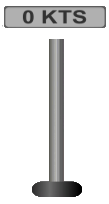
Slide the throttle control up and down to control the airplane’s true air speed (TAS).
VOR Indicator
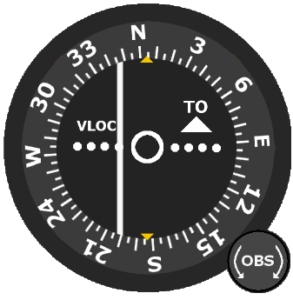
The VOR Indicator is used to select different radials and determine your position.
Slide the Omni-Bearing Selector (OBS) knob left-right to rotate the compass card and select different radials.
The ambiguity indicator (TO/FROM Flag) indicates whether the chosen radial will take you towards or away from the VOR station.
The RED flag indicates poor signal reception. This may indicate that you are too far away from the station, too low, within the cone of confusion, or passing through the zone of ambiguity.
The Course Deviation Indicator (CDI) needle shows whether you should make a course correction to the left or right to stay on the chosen radial.
Timer
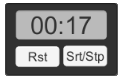
Push the “Srt/Stp” to start/stop the timer. The “Rst” button resets it. The timer will run at the rate shown on the hourglass dropdown button.
Top Menu Bar

Map / Controls Button
Touch the “Map” button to hide the Heading Indicator (DG).
Touch the “Controls” button to show the Heading Indicator (DG).
Hide Airplane Button
Touch the “Hide Airplane” button to hide the airplane and its track. It will still move at the chosen TAS and turn towards the chosen heading. Touch the button again to show the airplane and its track. The track will show you what you were doing while the airplane was hidden.
Clear the Trail
Touch the “CLR” button to delete the track to clear up the map.
Time Acceleration
Tap the dropdown next to the hourglass to increase the time rate.
Pause / Play Button
Push the Pause/Play button to momentarily stop the airplane and timer.
Randomize Position Button
Touch the “Random” button to move the airplane to a random position and heading near the VOR. Useful for orientation exercises.
Reset Button
Resets the airplane to its starting location.
Settings
Touch the “gear” symbol to open the settings menu with the following options:
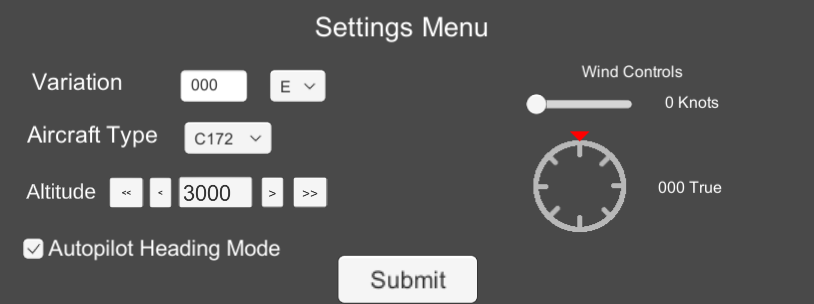
Variation – Sets local magnetic variation, useful to mimic approaches and other procedures.
Aircraft Type – Choose between a high-wing trainer, low-wing trainer, or multi-engine trainer.
Altitude – Choose the altitude, this will affect the cone of confusion.
Autopilot Heading Mode – Stops the airplane from automatically turning towards the heading bug.
Wind Controls – Sets wind speed and direction.
Mini-Map
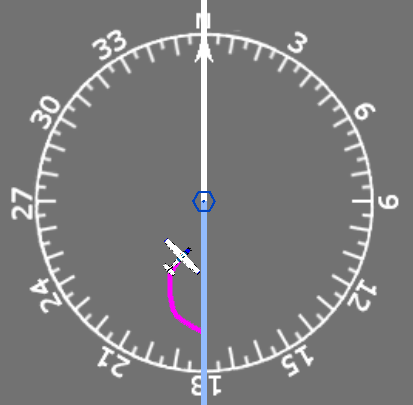
The mini-map shows the position of the VOR station, the chosen radials, and the position of the airplane as well as the path you have flown. You can touch and drag the airplane around.